

Admin guide · Platform
Monitoring
The landing page after login answers “what is my organization spending, and on what?”. Everything on it reflects real gateway traffic, aggregated live.
KPIs & charts
The dashboard combines headline numbers with trend and distribution views.
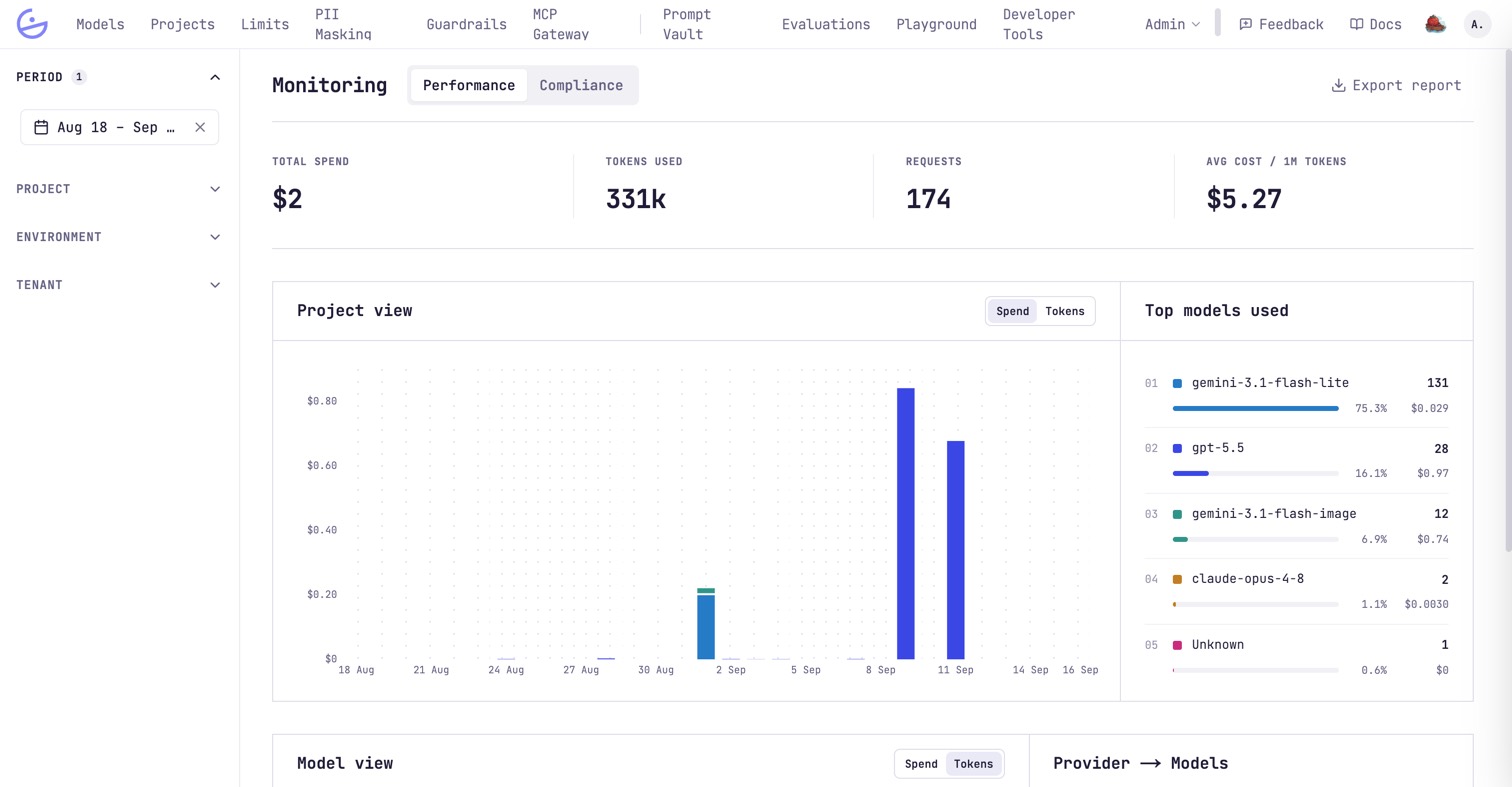
- KPI row — total spend, tokens used, requests, and average cost per 1M tokens for the selected period.
- Project view — cost (or tokens, via the toggle) per period as stacked bars, one segment per project. Hover a segment to follow that project across the range, or a column to light up the whole period.
- Top models used — ranked by requests, with share and cost per model.
- Model view and Provider → Models — where the volume actually flows: spend or tokens per period stacked by model, and the flow per provider.
tip · Export report
The Compliance tab
The same period, read as EU AI Act drift instead of spend: calls evaluated, violations, judge failures and cost, plus the declared-versus-deduced risk mix.
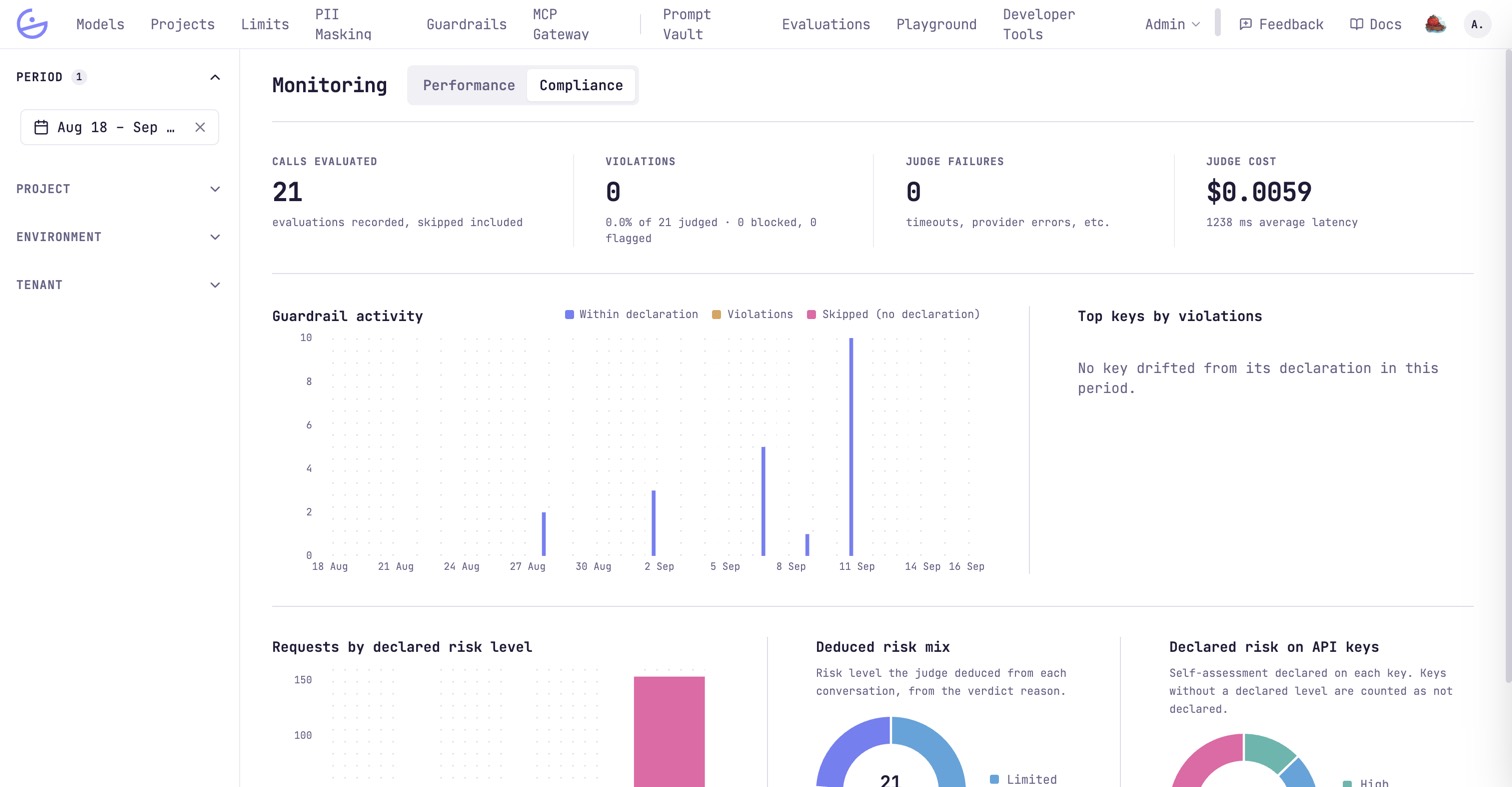
It is populated by the EU AI Act classifier; keys with no declaration are counted as skipped rather than compliant.
Slicing the data
The left rail narrows every widget at once — filters compose.
- Period — the date range all KPIs and charts are computed over.
- Project — restrict to one or more projects.
- Environment / Tenant — the metadata carried by API keys and requests.
note · Visibility is role-scoped
owner / admin see the whole organization. A plain member only sees data for the projects they are on the roster of.Drilling into traces
Aggregates link down to individual requests. Each project has a traces view — click its row in the Projects list — listing every trace with latency and cost. Click a row for the generation timeline with inputs and outputs.
tip · Make traces readable from code
trace_id, session_id and friends — see the developer page Monitoring & traces.