

Admin guide
Administering the platform
This guide is for organization owner and admin users who run the gateway from the dashboard — one page per section of the platform. If you only want to call the gateway from code, switch to the developer docs instead.
The dashboard, section by section
The top navigation bar is your map — each entry below links to the page of this guide that covers it.
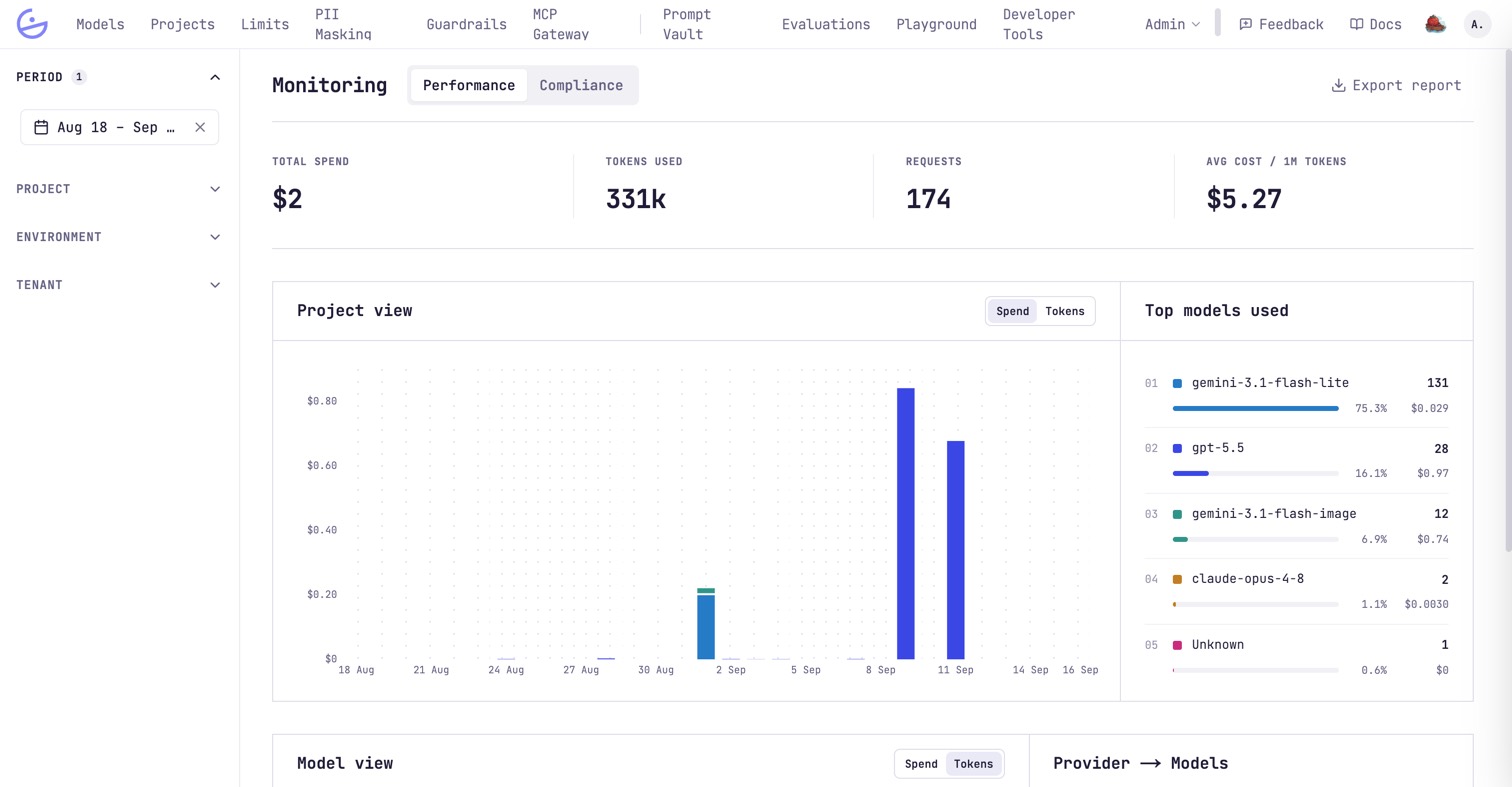
| Section | What it's for |
|---|---|
| Monitoring | Spend, tokens, requests and top models for the whole org. |
| Models | The catalog of models the gateway can route to, with pricing. |
| Projects | The unit that owns API keys, fixes their model access and carries the roster. |
| API Keys | Credentials bound to a project and an environment. |
| Limits | Budgets and request caps enforced per API key. |
| PII Masking | Redact sensitive data before it reaches the provider. |
| Guardrails | Policy rules evaluated on every request before the model. |
| MCP Gateway | Your third-party MCP servers, republished with access control. |
| Prompt Vault | Versioned, server-compiled prompts grouped into projects. |
| Evaluations | Score prompt versions against datasets, on demand or scheduled. |
| Playground | Try any model through a real gateway request in the dashboard. |
The Admin menu (top-right) groups the organization-level settings:
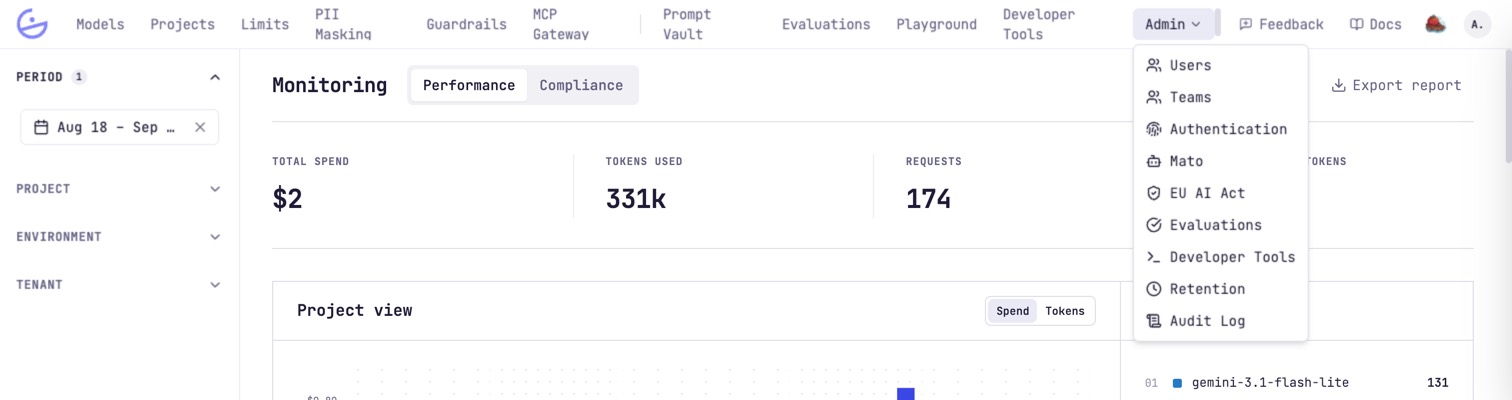
| Section | What it's for |
|---|---|
| Users & roles | The org roster and each person's owner / admin / member role. |
| Teams | Named groups you hand a project role to, instead of one by one. |
| Authentication (SSO) | Email & password plus enterprise OIDC providers. |
| Mato (AI assistant) | The in-app assistant and the model that powers it. |
| EU AI Act | Prompt risk classification, per-key drift and the evidence pack. |
| Data retention | How long generations and payloads are kept. |
| Audit log | The append-only record of every configuration change. |
tip · Mato, the in-app assistant
The icon next to
Docs opens Mato — a conversational way to do most of these tasks. Its tools are filtered by your permissions.Who can do what
Access is governed by two independent layers of role-based access control.
- Organization roles —
owner/admin/membercontrol access to admin surfaces and settings. See Users & roles. - Project roles — what someone can see and do within one project (keys, traces, members, model access). See Projects → Members & project roles. A role is granted to a person or to a whole team.
note · One user, one organization
Each account belongs to exactly one organization, keyed by the login subdomain. Most of this guide requires an org
owner or admin; members see a scoped subset.Standing up a new organization
A sensible order to configure things the first time — each step links to the page that covers it.
- Invite people and assign their organization role.
- Wire up enterprise SSO if you need it.
- Create projects and set each project's model access, then add its members — individually, or as teams.
- Issue API keys per project / environment.
- Attach budgets and request caps to the keys.
- Turn on PII masking and guardrails, and assign guardrails to keys.
- Optionally switch on developer tools so coding-agent sessions are recorded too.
- Set the org data-retention policy and review the audit log.